
To-Do List
Getting Started with the To-Do List Tab
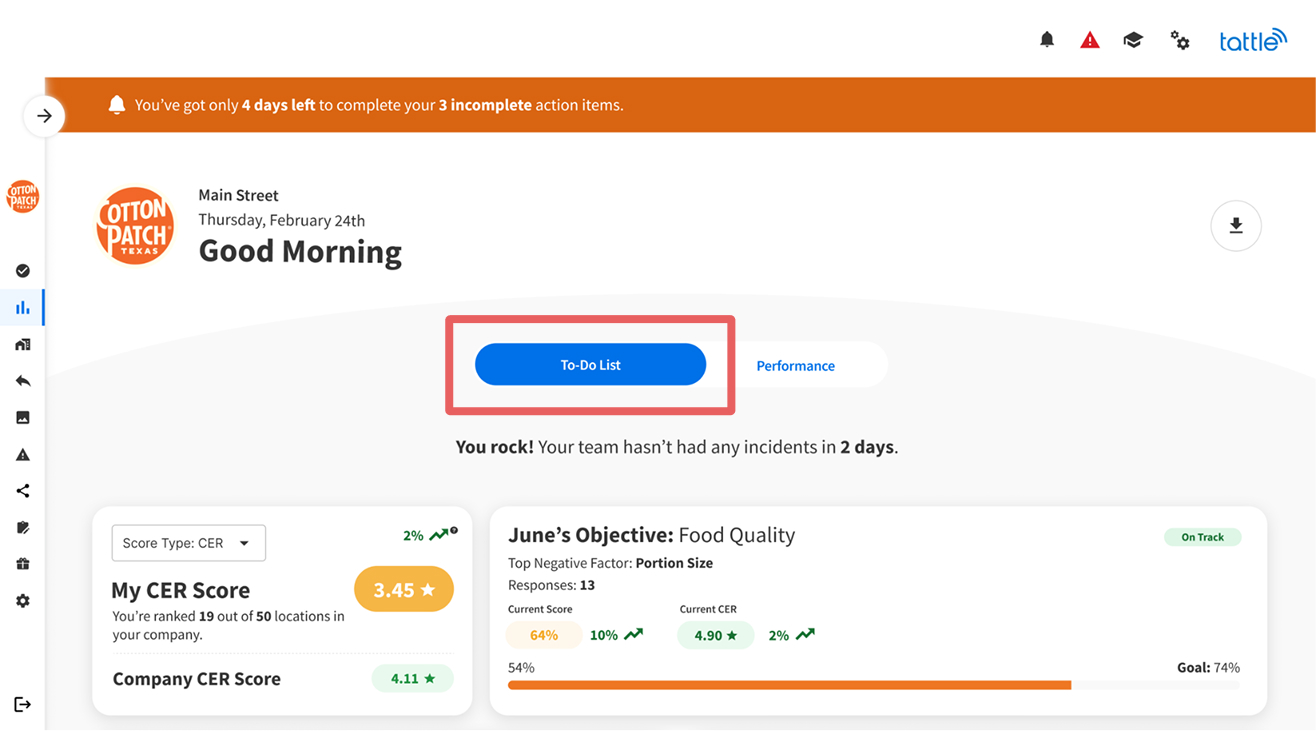
The To-Do List tab is your command center for daily operations, designed to help you manage guest feedback, track objectives, and complete action items—all in one place. Think of it as your personalized mission control for delivering exceptional guest experiences.
Overview
When you log into Tattle, you'll land on the To-Do List tab by default. This tab consolidates everything that needs your attention into a single, actionable view. No more jumping between multiple pages to stay on top of your guest feedback and operational goals.
Available to: All single location users Default view: Last 90 days of data with dynamic trends
Key Features
Score Type Selector
At the top of your dashboard, you can toggle between three score types to view your data:

-
CER (Customer Experience Rating) - Overall guest satisfaction
-
Average Score - The average star rating across all Operational Categories
-
Top Box - Percentage of 5-star ratings
Pro tip: Your score type preference is saved automatically on your device/browser, so you won't need to change it each time you log in.
Trending Indicators

Trends are calculated dynamically based on your selected date range:
-
Daily range = Day-over-day comparison
-
Monthly range = Month-over-month comparison
-
90-day range = 90-day comparison (default)
Don't see a trend arrow? This means your location needs more historical data for the selected timeframe to calculate a meaningful trend.
Your Objectives
What Are Objectives?
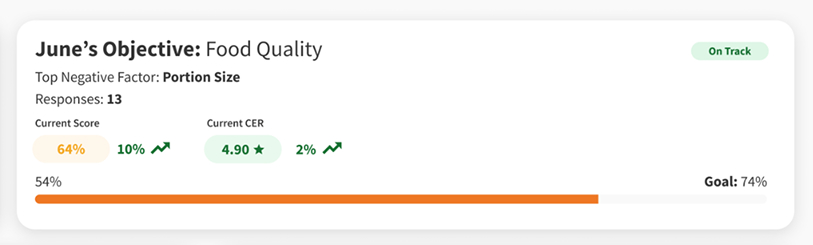
Each month, Tattle's AI analyzes your location's performance and assigns an Objective—a specific Operational Category that, if improved, will have the highest likelihood of boosting your overall performance.
Progress Tracking
Your objective shows one of two statuses:
-
On Track - You're making progress toward your goal
-
Off Track - Additional focus is needed to reach your goal
Progress is measured by overall survey scores within your assigned category.
Guest Feedback Counter
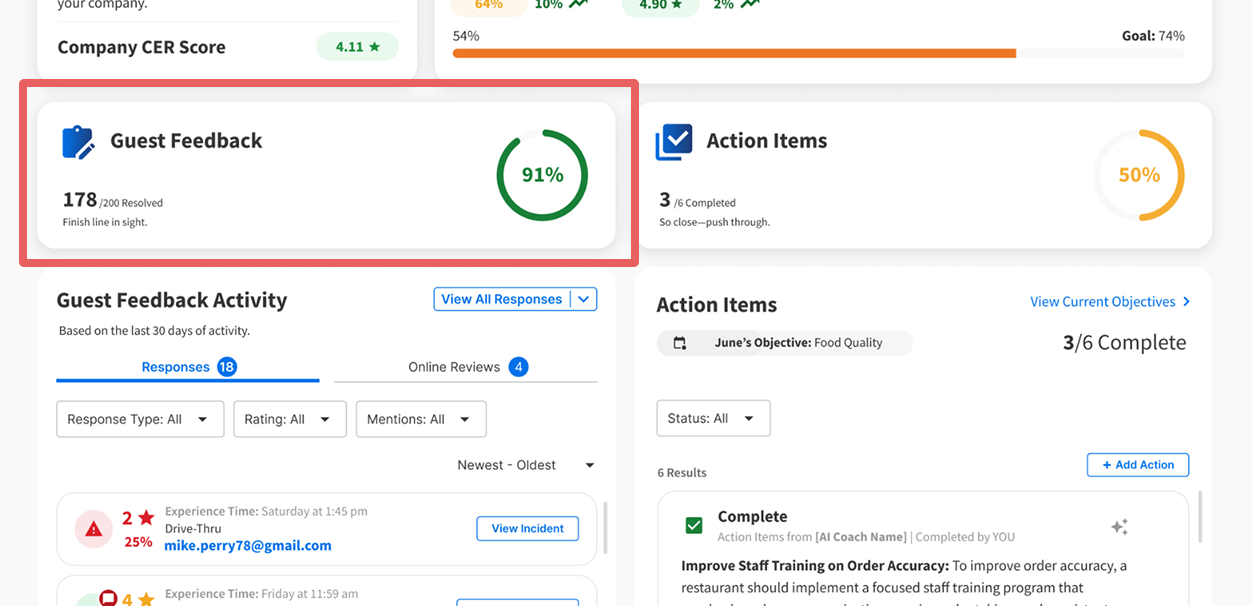
This widget tracks all feedback activity over the last 30 days, including:
-
Incidents
-
Responses
-
Online reviews
Each piece of feedback adds to the count, helping you track your engagement progress. Note: If a resolved interaction reopens due to new activity, it will no longer count as resolved.
Action Items
AI-Generated Action Items
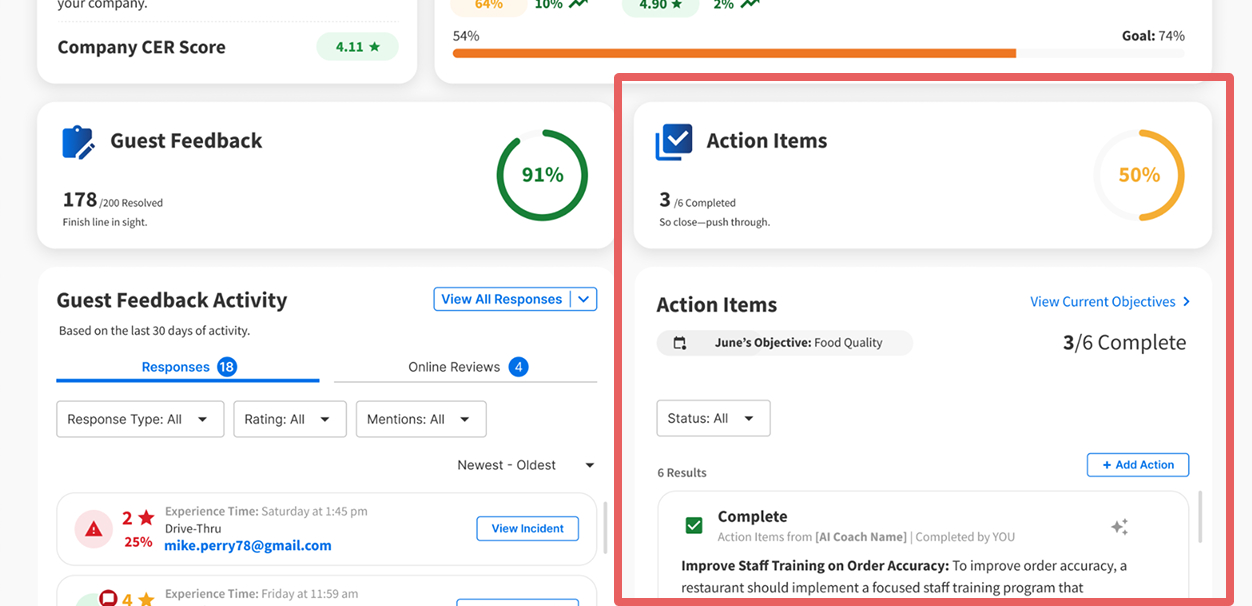
Every month, Tattle's AI Coach automatically generates custom action items based on your location's performance data. These recommendations are tailored specifically to your needs.
Manual Action Items
You can also create your own action items to track location-specific goals and tasks that matter to your team.
Guest Feedback Activity
This is where the real work happens—your inbox-zero style hub for managing guest interactions.
How It Works
Guest Feedback Activity operates on a 30-day activity window and includes two tabs:
Responses Tab
Displays responses, incidents, mentions, and guest replies that need attention. Once you view or reply to feedback, it automatically clears from this section.
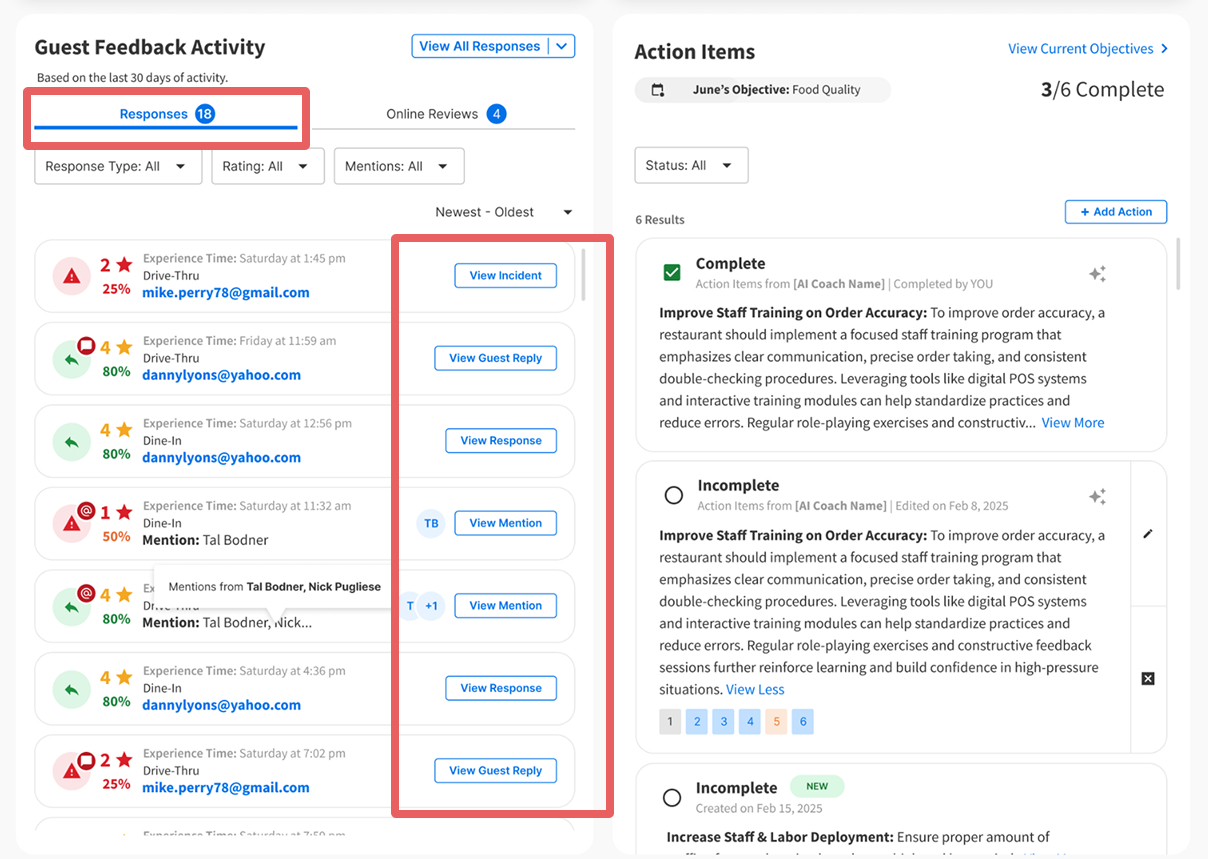
Key actions:
-
Reply to Guest - Available only to users with reply permissions
-
View Mention - User-specific mentions that only disappear when you view them
-
View Guest Reply - Review responses from guests after you've addressed their feedback
About Mentions: When multiple users are mentioned, hover to see who else was tagged. Bubbles show who has viewed each thread.
Linked Cards: When feedback includes a specific mention, you'll see linked cards to ensure important mentions get immediate attention.
Online Reviews Tab
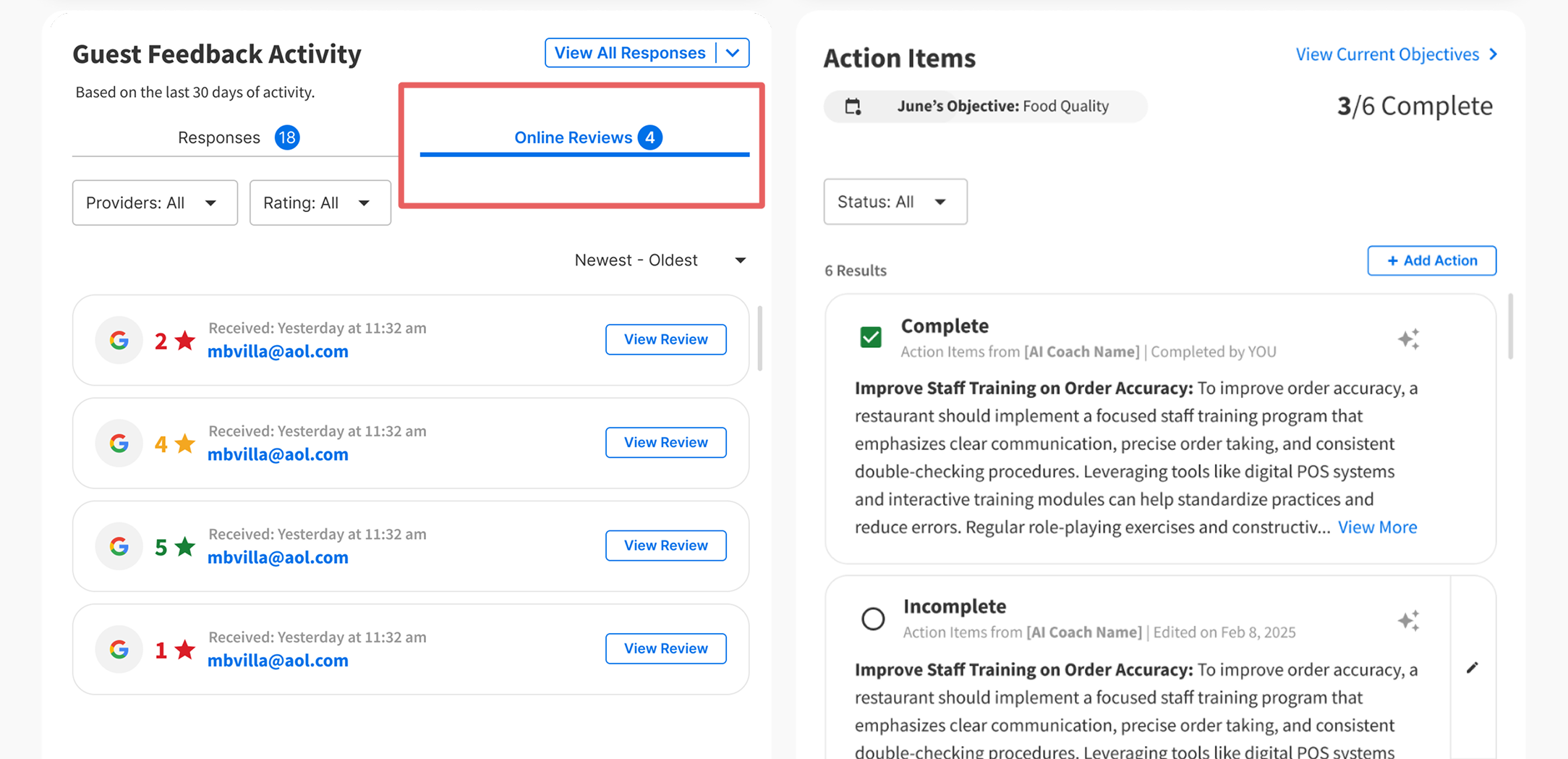
Scenario 1: If your location has Reputation Management enabled, you'll see online reviews that need attention.
Scenario 2: If Reputation Management isn't enabled, you'll see a preview of what this feature offers with an informational message about getting access.
Quick Navigation
Use the anchored dropdown to jump directly to:
-
All Responses
-
All Incidents
-
All Online Reviews
This saves you from navigating through the left-hand menu separately.
Permissions & Access
Not all single location users have the same permissions. Some can reply to guests, while others can only view feedback. Your available actions will automatically reflect your assigned permissions.
For Global/Groupable users: If you enter a Single Location Dashboard view and access Guest Feedback Activity, your viewing won't affect the activity section for that location's users.
Export Your Data
Click the export icon to download a CSV of your current To-Do List tab data. This is perfect for sharing updates with your team or keeping offline records.
Note: Export functionality is currently available on desktop only.
Tips for Success
-
Check your dashboard daily - Make it part of your opening routine to review pending feedback and action items
-
Address mentions promptly - These are flagged for a reason and often need quick attention
-
Monitor your objective progress - Small daily improvements add up to monthly success
-
Use the date range selector - Adjust timeframes to spot trends and patterns in guest feedback
-
Export regularly - Share your progress with your team to celebrate wins and align on opportunities
You've completed 0 of 10 articles in this category